

Sample Wallet
For a complete working example, check out our sample wallet implementation:Sample Wallet - React Native (WalletKit)
A reference React Native wallet app demonstrating WalletConnect Pay via WalletKit.
Requirements
- Node.js 16+
- WalletKit (
@reown/walletkit)
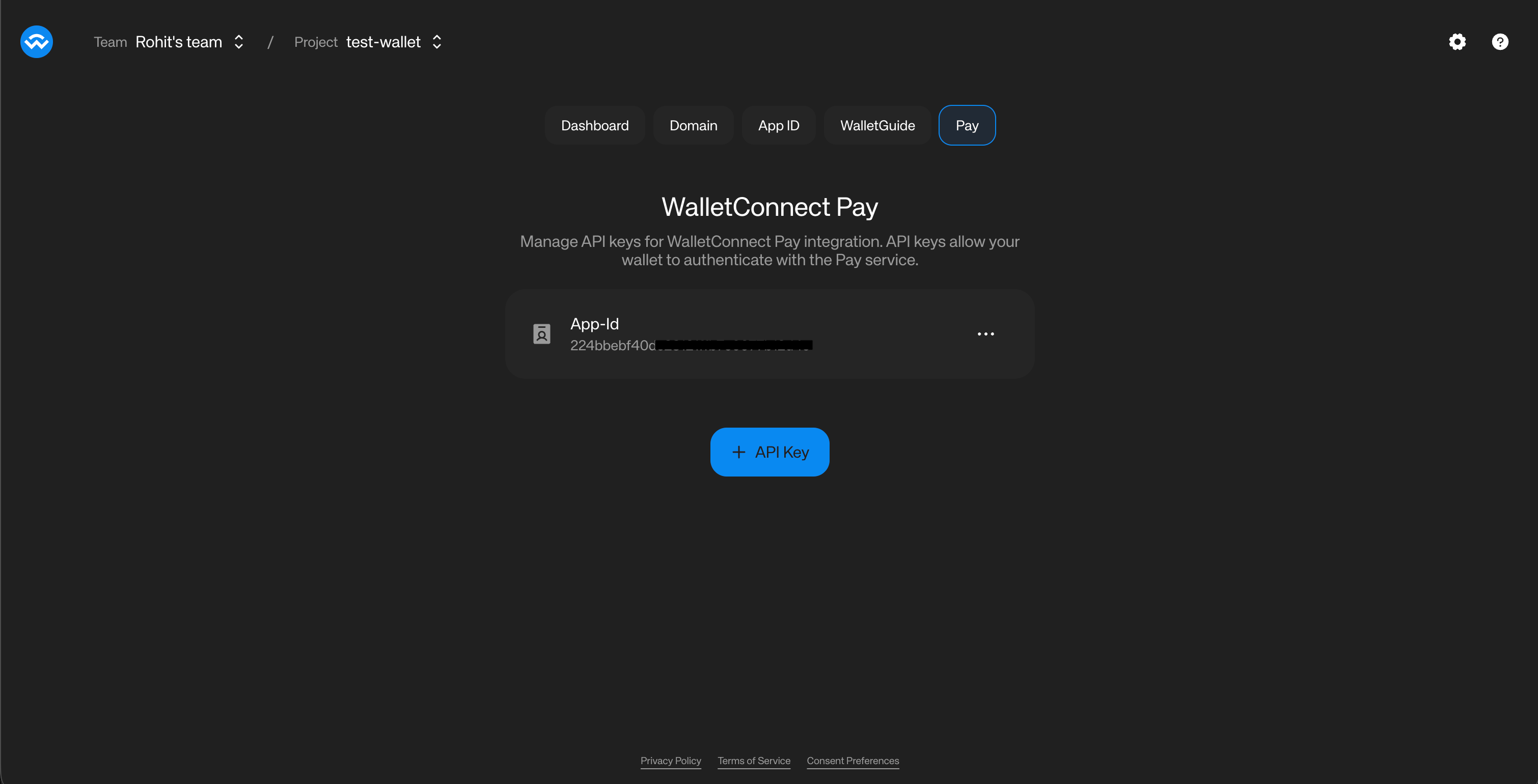
- Navigate to the WalletConnect Dashboard.
- Select the project that is associated with your wallet (as in, the projectId that is being used for your wallet’s WalletConnect integration).

- Click on the “Get Started” button to get a WCP ID associated with your project.
- The Dashboard will now show the WCP ID associated with your project.
- Click on the three dots on the right of the WCP ID and select “Copy WCP ID”. You will be using this for your wallet’s WalletConnect Pay integration.
Installation
Install WalletKit using npm or yarn:- npm
- yarn
Check the npm page for the latest version.
Initialization
Initialize WalletKit as usual. Pay functionality is automatically available:Payment Link Detection
UseisPaymentLink to determine if a scanned URI is a payment link or a standard WalletConnect pairing URI:
Payment Flow
The payment flow consists of six main steps: Detect Payment Link -> Get Options -> Collect Data (if required) -> Get Actions -> Sign Actions -> Confirm PaymentCollect User Data (If Required)
After the user selects an option, check for
Platform-Specific Bridge Names
collectData on it. If present, collect the data before fetching the required actions.Embedded Data Collection Form
When a payment requires user information (e.g., for Travel Rule compliance), the SDK returns acollectData field on individual payment options. Each option may independently require data collection — some options may require it while others don’t.The form is loaded from selectedOption.collectData.url and embedded in your wallet (a WebView on mobile, an iframe on web). It handles field rendering, validation, Terms & Conditions and Privacy Policy acceptance, and submits data directly to the backend.Collect this data before fetching the required actions. For an option that requires Information Capture, getRequiredPaymentActions fails with 400 IC data required until the data has been submitted.Recommended Flow
The recommended approach is to display all payment options upfront, then handle data collection only when the user selects an option that requires it:- Call
getPaymentOptionsand display all available options to the user - Show a visual indicator (e.g., “Info required” badge) on options where
option.collectDatais present - When the user selects an option, check
selectedOption.collectData - If present, load
selectedOption.collectData.urlin the embedded form - Optionally append query parameters to the form URL —
prefill(known user data),theme, andthemeVariables(appearance). See Form URL parameters below. Use proper URL building so existing query parameters are preserved. - Listen for completion messages:
IC_COMPLETE(success) orIC_ERROR(failure) - On
IC_COMPLETE, continue the flow — fetch the required actions, sign, and confirm the payment. Don’t passcollectedDatatoconfirmPayment(); the form submits data directly to the backend
Decision Matrix
Response collectData | option.collectData | Behavior |
|---|---|---|
| present | present | Option requires IC — use option.collectData.url |
| present | null | Option does NOT require IC (others might) — skip IC for this option |
null | null | No IC needed for any option |
Form URL parameters
The form URL accepts the following optional query parameters. Append them toselectedOption.collectData.url before loading it, preserving any existing query parameters.| Parameter | Format | Description |
|---|---|---|
prefill | base64url-encoded JSON | Pre-populates known user fields so the user doesn’t re-enter them. Keys must match the required fields from collectData.schema (e.g. fullName, dob, pobAddress). |
theme | light or dark | Sets the form’s base color mode. |
themeVariables | base64url-encoded JSON | Overrides design tokens to match your brand — font, font size, select colors, button border radius, and input border radius. Generate and export this value from the WalletConnect Pay Dashboard. |
collectData.schema is a JSON schema string — parse it and read its required array to discover the field keys for prefill. For example, a required array of ["fullName", "dob", "pobAddress"] maps to a prefill object of {"fullName": "...", "dob": "...", "pobAddress": "..."}.Customizing the form appearance
theme and themeVariables are optional and independent — pass either, both, or neither:themeswitches the form betweenlightanddarkbase color modes. Match it to your wallet’s active mode for a seamless transition.themeVariablesapplies brand-level overrides (font, font size, select colors, button border radius, and input border radius). Generate the theme in the WalletConnect Pay Dashboard, export it as a base64url string, and append it to the form URL verbatim — you don’t need to encode it at runtime.
The top-level
collectData on the payment options response is still available for backward compatibility. However, the per-option collectData is the recommended approach as it provides more granular control over the flow.WebView Message Types
The WebView communicates with your wallet through JavaScript bridge messages. The message payload is a JSON string with the following structure:| Message Type | Payload | Description |
|---|---|---|
IC_COMPLETE | { "type": "IC_COMPLETE", "success": true } | User completed the form successfully. Proceed to payment confirmation. |
IC_ERROR | { "type": "IC_ERROR", "error": "..." } | An error occurred. Display the error message and allow the user to retry. |
| Platform | Bridge Name | Handler |
|---|---|---|
| Kotlin (Android) | AndroidWallet | @JavascriptInterface onDataCollectionComplete(json: String) |
| Swift (iOS) | payDataCollectionComplete | WKScriptMessageHandler.didReceive(message:) |
| Flutter | ReactNativeWebView (injected via JS bridge) | JavaScriptChannel.onMessageReceived |
| React Native | ReactNativeWebView (native) | WebView.onMessage prop |
Sign Actions
Sign each required action using your wallet’s signing implementation:
Payment options may include multiple actions with different RPC methods. For example, a Permit2 payment where the user lacks sufficient allowance returns two actions: an
eth_sendTransaction to approve the token allowance, followed by an eth_signTypedData_v4 to sign the Permit2 transfer. Your wallet must check action.walletRpc.method and dispatch to the appropriate handler. For full implementation guidance, see USDT support.Data Collection Implementation
WhenselectedOption.collectData.url is present, display the URL in a WebView using react-native-webview. Install the dependency:
- Display prominently: Show the form full-screen or as a prominent modal so users can interact with it easily
- Loading indicator: Show a loading indicator while the form loads
- Handle errors: Listen for
IC_ERRORmessages and display a user-facing error message with an option to retry - External links: Open Terms & Conditions and Privacy Policy links in the system browser rather than navigating within the form
- Domain restriction: Only allow navigation to WalletConnect pay domains and HTTPS URLs
- Back navigation: Handle back/dismiss gracefully — confirm cancellation with the user before closing the form mid-flow
- Keyboard behavior: Test that the soft keyboard appears and behaves correctly when users tap on form inputs
- Theme to match your brand: Pass
theme=lightortheme=darkto match your wallet’s active color mode, and apply brand tokens withthemeVariablesexported from the WalletConnect Pay Dashboard. See Form URL parameters.
Complete Example
Here’s a complete implementation example:API Reference
WalletKit Pay Methods Pay methods are accessed viawalletkit.pay.*.
Utility Functions
| Function | Description |
|---|---|
isPaymentLink(uri: string): boolean | Check if URI is a payment link (imported from @reown/walletkit) |
| Method | Description |
|---|---|
getPaymentOptions(params) | Fetch available payment options |
getRequiredPaymentActions(params) | Get signing actions for a payment option |
confirmPayment(params) | Confirm and execute the payment |
Error Handling
Handle errors gracefully in your payment flow:Best Practices
- Use WalletKit Integration: If your wallet already uses WalletKit, prefer this approach for automatic configuration
-
Use
isPaymentLink()for Detection: Use the utility function instead of manual URL parsing for reliable payment link detection -
Account Format: Always use CAIP-10 format for accounts:
eip155:{chainId}:{address} - Multiple Chains: Provide accounts for all supported chains to maximize payment options
- Signature Order: Maintain the same order of signatures as the actions array
- Error Handling: Always handle errors gracefully and show appropriate user feedback
- Loading States: Show loading indicators during API calls and signing operations
-
Expiration: Check
paymentInfo.expiresAtand warn users if time is running low -
User Data: Only collect data when
collectDatais present in the response and you don’t already have the required user data. If you already have the required data, you can submit this without collecting from the user. You must make sure the user accepts WalletConnect Terms and Conditions and Privacy Policy before submitting user information to WalletConnect. -
WebView Data Collection: When
selectedOption.collectData.urlis present, display the URL in a WebView usingreact-native-webviewrather than building native forms. The WebView handles form rendering, validation, and T&C acceptance.